Why do construction teams still rely on printed notes, phone calls, or memory even after adopting modern software? In many cases, the issue is not resistance to technology. It is that the software does not match how work actually happens on site.
Custom skins in construction software address this gap. Instead of focusing on visual style alone, skins can reshape how information is prioritized, noticed, and acted on. This article explores how custom skins reduce errors, speed up field work, and improve coordination across construction teams.
Understanding Skin Design From a Field-Work Perspective
A skin is often described as a visual layer. From a field-work perspective, it is better understood as a behavioral guide. It influences what users notice first, what they ignore, and how quickly they respond.
In construction software, users rarely read every detail on the screen. They scan. They look for signals. Colors, spacing, and layout act as cues. A skin determines which cues are strongest.
Unlike office software, construction tools must work in imperfect conditions. Screens are checked briefly. Devices vary in quality. Attention is divided between physical tasks and digital instructions. A skin that works well in an office may fail completely on site.
From this angle, a skin is not decoration. It is a way to align software with human behavior in the field.
How Interface Confusion Leads to Real Construction Errors
Many construction errors are not caused by lack of information, but by missed information. Software may contain the correct data, but users fail to notice it in time.
Common issues include unclear task status, poorly highlighted deadlines, and alerts that blend into the background. When everything looks equally important, nothing stands out. Users rely on memory instead of the system.
These problems increase risk. A missed update can delay materials. A misunderstood task status can cause duplicate work. A hidden warning can lead to safety issues.
Custom skins help prevent this by reshaping visual priorities. Important information becomes visually dominant. Less critical data recedes. The interface supports faster, safer decisions.
Why Construction Teams Think Differently Than Office Users
Construction teams interact with software differently from office workers. They use it briefly, repeatedly, and often under stress. This difference must be reflected in skin design.
Key behavioral differences include:
-
Short interaction sessions instead of long focused work
-
Frequent interruptions from physical tasks
-
High reliance on quick visual recognition
-
Limited tolerance for complex navigation
Because of this, construction software skins should reduce choice and highlight action. The goal is not exploration, but execution.
When skins are designed with these behaviors in mind, users trust the system more and rely on it consistently.
Prioritizing Information Through Skin Design
One of the most powerful effects of a skin is information prioritization. Skins decide what appears first, what stands out, and what fades into the background.
This is especially important in dashboards and daily task views. Not all data deserves equal attention. A good skin makes priority obvious without explanation.
The table below shows how visual prioritization works in practice.
How Skin Design Guides User Attention
| Interface Element | Visual Treatment | Resulting User Behavior |
|---|---|---|
| High-risk tasks | Strong contrast, bold color | Immediate attention |
| Completed tasks | Muted or neutral tones | Quickly ignored |
| Deadlines | Clear visual markers | Faster response |
| Secondary data | Reduced emphasis | Less distraction |
| Alerts | Distinct color and spacing | Fewer missed warnings |
By controlling visual weight, skins guide behavior without adding instructions. Users respond instinctively.
Designing Skins to Match Daily Construction Routines
Construction work follows daily rhythms. Morning planning, mid-day updates, and end-of-day reporting all involve different priorities. A well-designed skin supports these rhythms.
In the morning, users need clarity and overview. During the day, they need fast updates. At the end of the day, they need confirmation and closure. Skins can support these phases by keeping layouts consistent and predictable.
For example, placing key actions in the same location across screens reduces thinking time. Using consistent colors for task states helps users understand progress instantly.
These small design choices accumulate into measurable efficiency gains over time.
Step-by-Step: Building a Field-First Skin
Step 1: Identify High-Risk Moments
Start by identifying moments when mistakes are most costly. These may include task handoffs, deadline changes, or safety-related updates. The skin should emphasize information at these moments.
Step 2: Reduce Visual Competition
Remove unnecessary emphasis. Not every element needs color or contrast. A quieter background allows critical signals to stand out.
Step 3: Simplify Navigation Paths
Field users should reach key screens in one or two taps. Skins can support this by visually reinforcing primary paths and de-emphasizing rarely used options.
Step 4: Reinforce Status Through Color
Color should represent status consistently. Users should never need to read labels to understand task state.
Measuring the Impact of Custom Skins
Unlike pure design changes, skin updates can be measured through behavior. Teams often notice changes quickly.
The table below shows common indicators used to evaluate impact.
Indicators That a Skin Is Improving Field Efficiency
| Indicator | What Changes After Skin Optimization |
|---|---|
| Task update speed | Faster completion reporting |
| Error frequency | Fewer missed or duplicated tasks |
| User feedback | Less confusion, fewer questions |
| Training time | Shorter onboarding sessions |
| System usage | Higher daily engagement |
When these indicators improve, the skin is doing its job.
Common Mistakes When Creating Skins for Construction Software
Even with good intentions, teams often make mistakes during customization.
Frequent problems include:
-
Overusing brand colors at the expense of clarity
-
Making everything visually “important”
-
Changing designs too often
-
Ignoring feedback from field users
-
Designing only for desktop screens
Avoiding these mistakes requires discipline and user involvement.
Long-Term Skin Management Across Projects
Construction projects change, and teams rotate. A skin must remain stable enough to support continuity while flexible enough to adapt.
Best practices for long-term management include:
-
Keep core visual rules consistent across projects
-
Allow small adjustments without full redesign
-
Test changes on real job sites
-
Document visual logic clearly
-
Treat skins as operational assets, not design experiments
When skins are managed this way, they become part of the company’s working system.
Conclusion: Skins as a Tool for Safer, Faster Construction Work
Custom skins in construction software are not about aesthetics. They are about behavior, attention, and decision-making. A well-designed skin reduces confusion, highlights risk, and supports faster action in real working conditions.
By focusing on field realities rather than visual trends, construction teams can turn software into a reliable partner instead of an obstacle. When skins guide users naturally, productivity improves without additional training or effort.
In construction, where time and accuracy matter every day, the right skin is not optional. It is a practical tool for getting work done better.
 From Fan to Creator: Building Worlds in Roblox
- Get Robux for Free and Level Up Your Roblox Experience
- Discover safe and proven ways to get free Robux and grow your account
- Is Free Robux Really Possible? The Truth Every Roblox Player Needs to Know
- A Beginner's Guide to Construction Software and Its Core Functions



- Everything Else
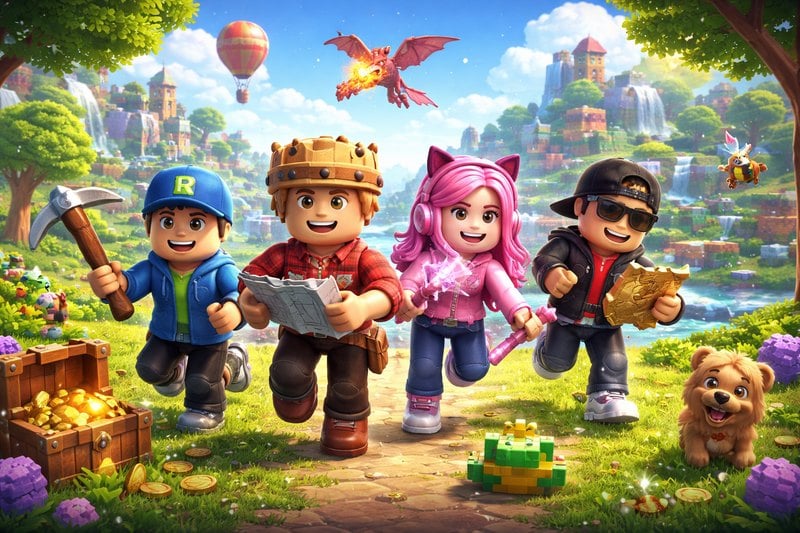
From Fan to Creator: Building Worlds in RobloxIf you have ever searched for free Robux, you probably landed on suspicious websites, fake generators, or videos promising instant rewards. You are not alone. Almost every Roblox player reaches a moment where they want more Robux — for better outfits, cooler items, or faster progress. The good news is that understanding Roblox itself is the first step. Once you know how this universe works, everything else becomes easier, safer, and more fun. Before talking about earning Robux, let's explore the world where it lives. Because Roblox is not just a game. It is an entire digital universe built by players, powered by creativity, and connected by Robux.- Everything Else
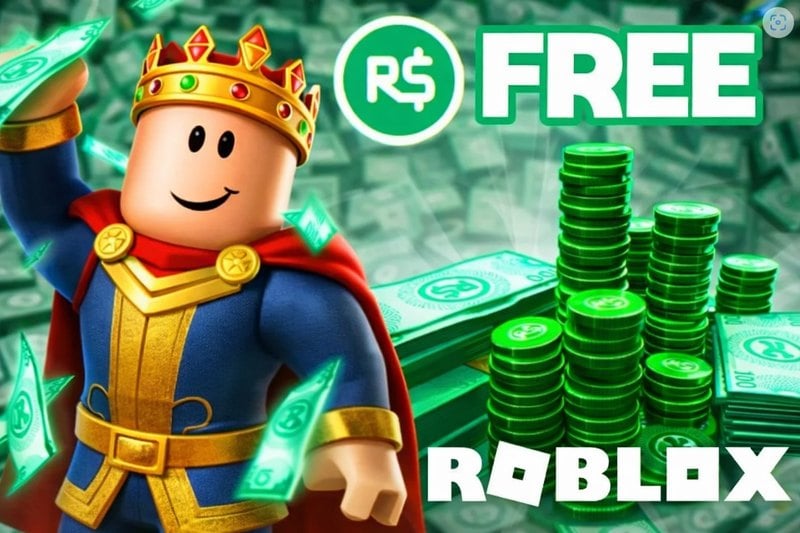
Get Robux for Free and Level Up Your Roblox ExperienceAre you trying to level up your Roblox experience without spending real money? You are not alone. The internet is full of free Robux promises, shady generators, and fake hacks that put your account at risk. But here is the truth: there are real, safe, and proven ways to earn Robux without paying. In this guide, you will learn exactly how legitimate free Robux methods work, how to avoid scams, and how to start building your Robux balance the smart way. Stay with us — your Roblox journey is about to upgrade.- Everything Else
Discover safe and proven ways to get free Robux and grow your accountRoblox is free to play, but Robux is the fuel that powers everything fun inside the platform. The problem is simple: Robux costs real money, and many players — especially younger ones — want ways to earn it without paying. If you search online for "free Robux," you will find hundreds of videos, generators, and websites promising instant rewards. Most of them are scams. Some waste your time. Others try to steal accounts. A few legitimate methods do exist, but they require patience and understanding of how Roblox's economy works. This guide gives you a full, realistic, and safe roadmap. You will learn what is actually possible, what is not, how to spot scams, and how to build long-term Robux income streams inside the Roblox ecosystem.- Everything Else
Is Free Robux Really Possible? The Truth Every Roblox Player Needs to Know"Can I really get free Robux without paying?" "Is this free Robux site safe?" "Why did my friend lose their Roblox account after trying a generator?" If you play Roblox, chances are you have asked at least one of these questions. Robux is the lifeblood of the Roblox universe. It lets you dress your avatar, unlock premium zones, buy game passes, and stand out in social spaces. For many players, Robux is not just currency — it is status, identity, and freedom inside the game.- Everything Else
A Beginner's Guide to Construction Software and Its Core FunctionsYou deal with complex schedules, tight budgets, and multiple stakeholders on every construction project. Construction software helps you manage these challenges by digitizing workflows, centralizing information, and giving you real-time control over planning, execution, and decision-making across the entire project lifecycle.
- A Guide of Waifu Generators How They Work, Their Uses, and the Future You Need in 2025
- How Gesture-Based Access Systems Improve Safety, Efficiency, and User Experience
- A Beginner's Guide to Building a Career in 3D Character Animation
- How to Choose the Right Forklift Hire for Your Business
- Save Big on the 2025 Hyundai Palisade: Tips, Deals, and Buying Secrets
- How Artificial Intelligence Is Shaping the Future of Customer Engagement